


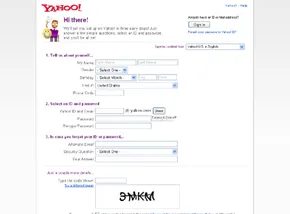
Setting up a free Yahoo Mail account is a straightforward process, but knowing exactly where to click saves time. You need to register for a Yahoo ID before you can touch the inbox. Once that’s done, logging in is simple, and you can start sending messages immediately. Here is the breakdown.
Registering Your Yahoo ID
Head to http://info.mail.yahoo.com/ and click the “Sign up now” box. If you don’t already have a Yahoo account, this is where you create one. The form asks for basic details: your name, gender, country, ZIP code, and a valid email address.
Next comes the identity part. You pick a Yahoo ID to use for email and instant messaging, then set a password. You also need to choose a security question, such as your pet’s name, to help recover access if you forget your password. Accept the service terms and privacy policy, and your account is ready.
Logging In and Staying Secure
Go to http://mail.yahoo.com in your browser. Enter your Yahoo ID and password, then hit “Sign In”. You land on the home page.
There’s a checkbox below the login box to stay signed in for two weeks. It cuts down on logins, but avoid it on shared computers. Security first.
Forgot your Yahoo ID or password? Click the statement below the “Sign In” button. Answer the verification questions, and you’ll get your ID via email or be prompted to reset your password.
To log out, click “sign out” in the upper right corner.
Navigating the Yahoo Mail Home Page
This guide covers the interface that launched in August 2007. The older version, now called Mail Classic, had a different layout and fewer features. If you see references to the classic view, it’s a legacy system.
On the left side of the home page, there are two main boxes.
The smaller top box holds the “Check Mail” button to see new messages. It also has a “New” button with drop-down menus. Use this to compose emails, send texts, or chat with friends. There’s a “Search Mail” option too, for digging through folders or finding specific text.
The larger lower box contains icons for accessing mail folders, contacts, a personal calendar, and a notepad. You can also add and view RSS feeds here. This lets you see the latest content from blogs, news sites, and other sites you visit regularly.
Near your Yahoo ID at the top and middle of the page, you can manage your Yahoo Messenger status. You can switch to Mail Classic, access account settings at the Member Center, or sign out.
Below that strip, you see your count of unread emails and local weather. A panel with updated news and info sits below that. Calendar events appear at the bottom. At the far right, above the weather, drop-down menus give you access to mobile mail, mail options, and help.
Sending and Receiving Email
Now that you know where everything is, it’s time to actually use it.


