



Log in to your email. Log in to your bank. Log in to Facebook. Log in to Amazon. Log in to your photo cloud. Can you count how many apps require a password on a regular basis? Think about your local computer account, too. Then add your work network shares or personal records at school. The list grows fast.
How do you keep track of it all?
Most people try a few tricks. Some work. Some are dangerous. Here is what you might have tried, and why you should probably stop.
Stop Using These Methods
Memorize everything. This works if you log in daily. It fails if you only visit a site once a month. Forget the password? You’re locked out. Also, browser cookies often remember your session for days. You might not type the password manually every day, but you still need to know it if the cookie expires.
Reuse the same password. It’s simple. It’s terrible for security. If a hacker cracks your username and password for one account, they get into your bank, your email, and your social media. All of it. One key opens all the doors. Don’t do this.
Write it on paper. Ideal only if you hide the paper where no one can find it. If someone finds the list, you’re exposed. If you lose the scraps of paper, you’re lost. And updating the list every time you change a password? That’s a chore you’ll likely skip.
Save it in a plain file on your device. Better than paper. Less likely to get lost in a drawer. But if your hard drive fails, the file is gone. More importantly, if your computer gets hacked, the file is vulnerable. Hackers love plain text files. You could encrypt the file for extra security. That makes this method similar to the next option.
Use password management software. This is the utility that saves and retrieves all your passwords. It can be a standalone app on your computer or a feature built into another tool. It limits hackers’ routes to your data. It adds features for organizing and retrieving info. It’s the standard for a reason.
In this article, we break down the types of password management software. We look at benefits and risks. We examine specific apps on the market and sort out which ones are reliable and which are hit-or-miss. But first, let’s look at how this problem evolved.
History of the Password Management Problem
Early home computers were simple. One computer. One user. No internet. A single password was enough. Some people stuck the password on a sticky note on the monitor. No one found it unless they broke into the house.
Then came networks. Suddenly, you needed passwords for every system on the network. Sticky notes didn’t fit on the monitor anymore. Writing them down became risky. You needed a better solution.
Software designers created the first password management tools. The goal was simple. Manage a list of accounts with usernames and passwords. Protect that list from hackers. Protection needed to work on the local computer and over network connections. As features evolved, these tools tackled more complex security needs.
The problem exploded with the World Wide Web in the 1990s. Every website had its own user system. Some sites added thresholds to stop password-guessing software. Other sites enforced strict rules. Length matters. Content matters. Rules vary by site.
One site demands special characters like exclamation points or asterisks. Another site rejects them entirely. You can’t use the same password everywhere if the rules clash. You need unique passwords for each platform.
Mobile computing made it worse. Laptops let you surf the web from anywhere. But they also increase the risk of data loss from damage or theft. Add smartphones and tablets to the mix. Now you’re managing passwords across multiple devices. Not just one or two.
Today’s solutions account for web and mobile challenges. They tie into web browsers. They auto-fill login forms when you visit specified sites. The problem isn’t shrinking. Cloud computing replaces local utilities. Web apps are rising. You can even find password management as a web app.
Types and Benefits of Password Management Software
We’ve scoped out the challenges. Now let’s look at the basic features. Different types of software offer different benefits. Some focus on security. Others on convenience. Understanding the types helps you choose the right tool.
Password management software isn’t just about saving time. It’s about creating a barrier between your sensitive data and potential attackers.
We’ll examine specific applications next. We’ll sort out which ones deliver on both features and security. Which ones are worth your trust? Which ones are just marketing hype? The answer depends on your needs. And your tolerance for risk.
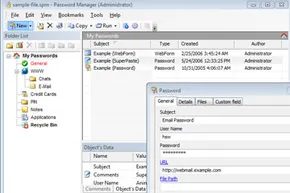

Developers haven’t agreed on a single blueprint for password managers. The debate centers on where the data lives, how tightly it’s locked, and what extra tools get bundled in for saving or retrieving credentials. By 2011, four distinct archetypes had emerged. Each carries specific trade-offs between convenience and exposure.
The right tool depends on your threat model. If you never leave your house, a browser extension suffices. If you travel with your laptop, hardware encryption might be worth the hassle.
Browser-Integrated Managers
Operating systems, browsers, and security suites often ship with built-in vaults. Chrome, Firefox, and Internet Explorer all had their own implementations. Norton 360 bundled identity management features into its broader security suite. These tools are convenient. They work out of the box. They require zero extra software.
But they are also the least secure option for high-risk environments. You are trusting the browser’s security posture to protect your deepest secrets. If that browser is compromised, your passwords go with it. Use this only if you trust the ecosystem enough not to need a secondary layer of defense.
Standalone Desktop Applications
This was the original model. No cloud. No browser integration. Just an app on your machine. KeePass and Aurora are the prime examples from that era. Aurora offered strong encryption, form-filling capabilities, a password generator, and the ability to export data to readable files.
These apps shine if you stay on one device. They don’t share your data with other users on the same machine any more than necessary. They keep everything local. The downside? No syncing. If you switch computers, you’re on your own. You have to manually move the database file. It’s rigid. It’s secure. It’s isolated.
Hardware-Embedded Security
Some managers leverage physical components embedded in the device. Lenovo’s T-series ThinkPads, for instance, featured an Embedded Security Subsystem chipset on the motherboard. This isn’t just software storage. It’s dedicated hardware.
When paired with Lenovo’s password management tools, data is encrypted and stored in that chipset. Retrieval requires a passkey, a fingerprint from an integrated reader, or both. Because the credentials aren’t on the hard drive, you can configure the BIOS to demand that passkey or biometric just to boot the machine.
This approach targets a specific threat: physical theft or hacking. If you work in shared spaces, travel frequently, or worry about someone stealing your laptop and pulling the drive, hardware-backed encryption adds a formidable barrier. It’s less common than cloud solutions, but significantly harder to bypass remotely.
Web-Based Password Managers
The cloud model changed the game. Web applications like RoboForm and PasswordSafe allowed access from any internet-connected device. You signed in with one master password and retrieved everything else.
RoboForm and PasswordSafe mirrored many features of standalone apps like Aurora but added cross-platform accessibility. Desktop and mobile browsers could all tap into the same vault. This is the go-to choice if you juggle multiple operating systems. You want your passwords everywhere, instantly. The trade-off? You are trusting a third-party server with your data. If that server is breached, your entire digital life is exposed.
Risks of Using Password Management Software
The Single Point of Failure
You wouldn’t carry your bank statements, house keys, and credit cards in an unsecured backpack. So why put every digital credential in one app without asking questions? Password managers are convenient, sure. But they concentrate risk. If a hacker gets that one master key, they own everything.
Think of your password manager as your physical home. It holds all your valuables. One key opens the front door. If that key is stolen, the intruder doesn’t just take your TV. They take your identity, your money, your secrets. The software itself doesn’t matter as much as how you lock the door.
Hardening Your Defenses
You can’t eliminate risk. You can only manage it. Treat your master password like nuclear launch codes.
- Physical security matters. Don’t leave your laptop on a coffee shop table while you grab coffee. Use a Kensington lock if you’re in a public space. Theft is the most common way credentials leave your possession.
- Lock your user accounts. A weak device password is a backdoor. Force a login on boot. Force a login on wake. Change that password regularly.
- Screen locks are non-negotiable. Step away? Lock the screen. Always.
- No sharing. Never give your master password to IT support, family, or friends. Ever.
- Firewalls are your first line of defense. Keep them active. Block unwanted network access.
- Complexity wins. Choose a master password that takes months to brute-force. Not your birthday. Not “password123.”
- Rotate the key. Change your master password every two to three months. And make it different from your OS login. If they’re the same, you’ve created a single point of failure twice.
- Biometrics help. If you forget passwords, use a fingerprint or face scan. It removes the memory burden. But remember: biometrics are still tied to that underlying encryption key.
Lock the doors. Lose the key? You’re out. Make the lock too hard to pick? Thieves move on. But what if they bring a sledgehammer? Or a crowbar? The lock isn’t the only vulnerability. The house itself might be poorly built.
Specific Threats by Manager Type
Generic advice covers the basics. But specific tools have specific weaknesses. Ignore them at your peril.
Local Storage and Malware
Software that stores passwords on your hard drive faces one main enemy: malware. It’s not magic. It’s code. Malware scans your file system for known password storage locations. It finds them. It exfiltrates them.
You stop this with reliable, updated anti-virus software. Period. That’s your shield against the code hunting your secrets.
Browser-Based Managers
Browser password managers are risky. They’re convenient. They’re also often poorly secured.
Take Firefox. It encrypts passwords. Then it writes the encoded string to a simple text file next to the URL. Anyone with access to that file can read it. Physical security, user passwords, and screen locks protect that file. But if malware runs on your machine, it reads that text file. Easy.
Integrated System Security
Some browsers try harder. Internet Explorer in Windows uses the Windows registry. It leverages Triple DES encryption. To see the passwords, you need administrator access to the registry.
If you’ve locked down your Windows account and blocked malware, IE passwords are relatively safe. But rely on that lockdown. If your admin account is compromised, the encryption means nothing.
Hardware-Encrypted Drives
Embedded security chips and hardware encryption seem like the ultimate solution. They aren’t. They amplify one specific risk: forgetting your password.
These systems often require a boot password. Set it. Forget it. You can’t start your computer. Today’s machines run for weeks without rebooting. You might forget that password before you even restart.
Worse, if you move the hard drive to another machine, the boot password might not stop you. But the hardware-encrypted data? It stays locked. Unless the manufacturer provides a recovery key, you’ve bricked your data. Check for recovery steps before you enable hardware encryption. Don’t assume you’ll remember. Assume you won’t.
We are at the finish line, and the final category demands a different kind of caution. Web apps. These cloud-native password managers shift the burden of security from your local machine to a third-party server. It is the same dynamic we see in general cloud computing: you are trusting a corporation with your digital life.
The concern here is not just about a lost laptop. It is about scale.
When you store credentials in a web app, you are creating a honeypot. Hackers do not always want to target individual users. It is inefficient. They want the master database. They want the one vault that holds thousands of keys. If the company behind the software fails, or if their infrastructure is breached, the fallout is massive. This is the same high-stakes environment where banks and government agencies operate. The question is not if they will be targeted, but when.
So, how do you protect yourself when the risk is baked into the business model?
Choosing the Right Web App Provider
You cannot eliminate the risk entirely. You can only manage it. The only way to minimize exposure is to be ruthless during the selection process.
Do not click on the first banner ad you see. Dig deeper.
- Research the company. Who owns the software? Do they have a history of data breaches? How transparent are they about their security practices?
- Read expert evaluations. Independent security audits matter more than marketing copy. Look for firms that have actually tested the encryption and authentication protocols, not just written a review based on user interface design.
The convenience factor is real. Web apps sync across devices instantly. You can access your passwords from any browser, anywhere. But you have to weigh that ease against the potential for a catastrophic data leak. Sometimes the trade-off is worth it. Sometimes it is not.
Common Questions
What is a reliable example of password management software?
LastPass is a well-known example. It has been around long enough to have a public track record, for better or worse. When evaluating options, look for similar established names that prioritize security over flashy features.
Looking Ahead
This wraps up the deep dive into password management. The landscape shifts fast. New threats emerge. New solutions appear. Stay sharp. Keep your tools updated. And remember, no software is truly “set it and forget it.” You are still the first line of defense.


