



Every device connected to a network needs a unique identifier. It’s the digital equivalent of a street address. Without it, data packets have no idea where to go. Computers rely on the TCP/IP protocol to communicate. This standard dictates how machines talk to each other. The specific identifier used in this system is the IP address.
There are two main versions in use today. IPv4 is the old standard. IPv6 is the new one. Most modern computers run both. They work side-by-side to keep the internet moving. But they operate very differently.
The Technical Gap Between IPv4 and IPv6
IPv4 uses 32-bit binary numbers. It creates a unique address using four decimal numbers separated by dots. Think of 216.27.61.137. Each segment is an octet. It’s a base-10 representation of an eight-digit binary string.
IPv6 is different. It uses 128 bits. That’s a massive jump in complexity. The address looks like this: 2001:cdba:0000:0000:0000:0000:3257:9652. It uses hexadecimal groups. Eight groups of numbers. Separated by colons. You can shorten it by removing zeros. 2001:cdba::3257:9652. The double colon indicates the gap.
Why does this matter? Because we nearly ran out of room. When IPv4 was designed, the internet was tiny. It was academic. Private networks didn’t talk to each other. There was no commercial explosion yet. The 32-bit limit seemed plenty.
It wasn’t. Under IPv4, you get 2^32 combinations. That’s just under 4.3 billion addresses. Not many when you have billions of devices. IPv6 fixes this. It offers 2^128 possible addresses. That number is so large it’s almost meaningless. It’s stress relief for the global infrastructure.
How Your Device Gets an IP Address
IP addresses are either static or dynamic. Static means permanent. A static IP assigned by your ISP is rare. You can set them up on a local network. But it’s risky. If you don’t understand TCP/IP deeply, you’ll break things.
Dynamic addresses are the norm. They are assigned by DHCP. This stands for Dynamic Host Configuration Protocol. DHCP runs on your router or a dedicated server. It hands out addresses on a lease.
The lease has an expiration date. When it expires, your computer asks for a new one. Sometimes it gets the same IP. Sometimes it gets a new one. This happens if you’ve been offline for a while. The router has given your old address to someone else.
Usually, you never notice this. The process is invisible. Unless you get an error. An IP address conflict. That happens when two devices claim the same ID. It’s rare these days. Modern systems patch the issue automatically.
Understanding IP Classes
Before diving into the nitty-gritty of subnetting and masking, it helps to know how addresses are grouped. IPv4 addresses aren’t just random numbers. They fall into classes. These classes define the size of the network and the size of the host.
Class A addresses are for huge networks. Think large corporations or ISPs. Class B is for medium-sized organizations. Class C is for small businesses or home networks. Classes D and E are reserved for multicasting and experimental use.
Knowing which class an address belongs to helps you understand its structure. It tells you which part is the network ID. Which part is the device ID. This distinction is critical for routing. Packets need to know if they stay local or head out to the wider internet.
We’ll look at how to find your own IP address next. And what those numbers actually mean for your connection.
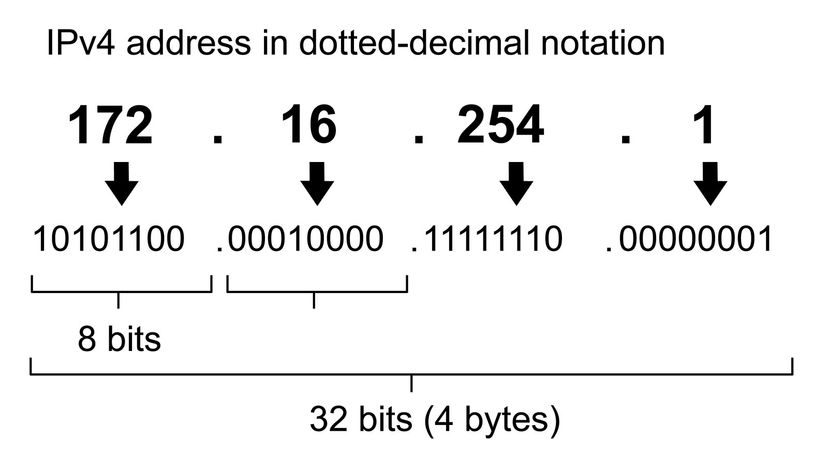

Most people think an IP address is just a random string of digits assigned to their device. It’s not. The numbers are tightly regulated by the Internet Assigned Numbers Authority (IANA) to keep the global network from collapsing into chaos. If every device could grab any address between 0.0.0.0 and 255.255.255.255, traffic would collide. Data would get lost. Systems would fail.
Certain ranges are off-limits. They serve specific, critical functions that have nothing to do with your laptop or phone.
The Addresses You Should Never Use
Some IP addresses are reserved for abstract concepts or emergency broadcasts. They are hard-coded into the TCP/IP protocol standards.
- 0.0.0.0 : This isn’t a device. It represents the default network. It’s the digital equivalent of saying “I am connected to a network” without specifying which one.
- 255.255.255.255 : This is a broadcast address. Messages sent here go to every computer on the local network segment. It’s like shouting in a room so everyone hears you, rather than whispering to one person.
- 127.0.0.1 : Known as the loopback address, this is how a computer identifies itself. It allows software to test network stacks without leaving the machine. You might see this in error logs when a local service fails. It works regardless of whether you have a public IP assigned.
Then there’s the oddball range: 169.254.0.1 to 169.254.255.254. This is the APIPA range. If your computer tries to get an IP from a DHCP server and fails—because the router is down or the server is overloaded—it assigns itself an address from this block. It’s a self-healing mechanism. It doesn’t guarantee internet access, but it lets local devices talk to each other on the same subnet.
Private Subnets and Class Ranges
Beyond these special cases, the remaining addresses are split into subnets. A subnet is a smaller network carved out of a larger one. Routers use these boundaries to direct traffic efficiently. Without subnets, every data packet would have to traverse the entire network backbone, slowing everything down.
The IANA has reserved specific blocks for private use. These are the addresses you will most often see in home and office networks. They are not routable on the public internet, which adds a layer of security.
- Class A Private Range: 10.0.0.0 to 10.255.255.255. This massive block falls within the Class A range (1.0.0.0 to 127.0.0.0). The first bit of the address is always 0. Large organizations often use this.
- Class B Private Range: 172.16.0.0 to 172.31.255.255. Part of the Class B space (128.0.0.0 to 191.255.0.0). The first two bits are 10. Medium-sized networks typically use this.
- Class C Private Range: 192.168.0.0 to 192.168.255.255. The most common range for home routers. It sits in the Class C range (192.0.0.0 to 223.255.255.0), where the first three bits are 110.
What about the rest?
- Multicast (formerly Class D): 224.0.0.0 to 239.255.255.255. The first four bits are 1110. IETF document RFC 5771 defines its uses. It’s for sending data to multiple recipients simultaneously, like video streaming or network discovery protocols.
- Class E (Reserved/Experimental): 240.0.0.0 to 254.255.255.254. The first four bits are 1111. Reserved since RFC 1112 in 1989. There’s no official plan for general use. For years, experts debated whether IANA should release this block. They haven’t. It remains a ghost zone in the IPv4 space.
The first three private ranges (Classes A, B, C) are the workhorses. They are the addresses your router hands out. Multicast handles group communication. Class E sits idle.
How to Find Your Own IP Address
You might see these reserved blocks in theory, but what about your actual device? The process differs by operating system.
Windows:
1. Open the Start menu.
2. Type cmd and hit Enter.
3. In the command prompt, type ipconfig.
4. Look for the “IPv4 Address” under your active network adapter.
Mac:
1. Go to System Preferences.
2. Click Network.
3. Select your active connection (Wi-Fi or Ethernet).
4. The IP address
How Subnets Divide Your Network
You are likely sitting on a private subnet right now. If your computer’s IP address looks like 192.168.1.102, you are behind a router. That router sits between your device and your ISP, acting as a gatekeeper. It uses a specific subnet mask to define the boundaries of your local network. In this common home setup, the mask is 255.255.255.0.
This mask tells the computer which part of the address is the network and which part is the device itself. With three octets (24 bits) reserved for the network identity and one octet (8 bits) for the nodes, the scope is tight. The network itself is identified as 192.168.1.0. This address doesn’t belong to any single computer. It is the label for the entire subnet. At the other end of the range sits 192.168.1.255. This is the broadcast address. If a device on the network sends a message to this address, every device on that subnet receives it.
Addresses in between are for actual devices. 192.168.1.1 is often the router’s internal interface. 192.168.1.103 might be a laptop. But 192.168.2.1 is on a completely different network. The router won’t send traffic there unless it’s routed externally.
This distinction matters because of how the Internet Assigned Numbers Authority (IANA) manages the global address pool. The IANA hands out blocks of public IPs to entities like ISPs or large governments. Your ISP holds one of these blocks. When you connect, they assign you an address from that pool. But most homes don’t plug a single computer directly into the modem. They use a router to share that single public connection among many devices.
The router grabs the public IP from the ISP. Then it spins up its own private subnet for your laptops, phones, and smart TVs. If your device has an address in the reserved ranges (192.168.x.x, 10.x.x.x, or 172.16.x.x), it is talking to a router, not the open internet.
The Mechanics of the Subnet Mask
The subnet mask is essentially a filter. It is a string of 1s followed by a string of 0s. The 1s mask the network portion, revealing the unique node ID underneath. Standard IPv4 masks usually align with octet boundaries, but they don’t have to.
Common configurations include:
- 255.0.0.0: 8 bits for network, 24 for nodes.
- 255.255.0.0: 16 bits for network, 16 for nodes.
- 255.255.255.0: 24 bits for network, 8 for nodes.
Network engineers tweak these values based on scale. Want more subnets? Shift bits from the node count to the network count. Want more devices per subnet? Do the opposite. You might end up with non-standard masks like 255.192.0.0. This uses 11000000 in the second octet, splitting the bits unevenly to balance the number of available networks against the number of hosts per network.
Regardless of the math, the rules remain rigid. The first address in the range is always the network identifier. The last is the broadcast address. Neither can be assigned to a specific computer.
Private vs. Public IP Addresses
Confusing private and public IPs breaks the mental model of how the internet works. They serve entirely different purposes.
Public IP addresses are globally unique. They must be registered with the IANA or a regional internet registry. This registration ensures that no two devices on the global web share the same identifier. If you run a web server or an email gateway that needs to accept connections from outside your local area, you need a public IP. It is the address the rest of the world sees.
Private IP addresses are different. They are not registered. They are not unique on a global scale. A router in New York can use 192.168.1.1. A router in Tokyo can use the exact same address. They don’t conflict because private IPs are only valid within their own local network. They operate on closed circuits.
This distinction drives both security and cost.
Public IPs are exposed. They sit on the front line. Because they are accessible from the outside, they require heavy security. Firewalls and intrusion detection systems are mandatory to keep bots and hackers out. Managing a public IP is expensive and complex.
Private IPs offer isolation. They don’t need to be visible to the internet. This makes them inherently safer from external attacks. You can’t ping a device on your home Wi-Fi from a server in Germany. More importantly, private IPs are reusable. You don’t need to buy a new address for every new device you add. This conservation of address space has saved the IPv4 infrastructure from collapsing years ago.
When you ask how your devices talk to each other, the answer lies in this layering. The router translates between the private world of your home and the public chaos of the web. It keeps your local addresses safe while letting you browse. It’s a simple trick. It works because the internet was built to handle translation, not just direct connection.
But the translation layer has limits. If you need remote access to a device inside your subnet, the private address becomes a barrier. You have to punch a hole through the firewall. Or use a tunnel. The convenience of isolation is also the source of complexity when things go wrong.
How DHCP Actually Hands Out Addresses
Static IPs are the exception, not the rule. Most devices on your network get their digital identity through Dynamic Host Configuration Protocol (DHCP). It’s an automated handshake that prevents you from manually typing in subnet masks and gateway addresses every time you connect to Wi-Fi. The process is a standardized four-step dance, often called DORA, that ensures no two devices on the same local network end up with the same address.
First comes Discover. Your device doesn’t know who to ask. It shouts into the void, sending a broadcast packet across the local network segment. This packet essentially says, “Is there a DHCP server out there?” It doesn’t expect a specific reply from a specific IP; it just wants any available provider to hear it.
Next is Offer. The DHCP server hears the broadcast. It checks its pool of available addresses and sees the MAC address of the requesting device. It picks an unused IP from its inventory and sends a response back. This isn’t a guarantee yet, just an open invitation. The offer includes the IP address, the subnet mask, the lease time, and the server’s own details.
Then comes Request. Your device might see offers from multiple servers (rare, but possible in complex enterprise setups). It picks one. Usually, it picks the first one it heard. It then sends a formal request to that specific server, confirming, “Yes, I want that specific IP address.” This step is crucial because it locks in the choice before the server commits resources.
Finally, there is Acknowledge. The server confirms the assignment. It updates its internal database to mark that IP as “leased” to that specific MAC address. It sends a final packet saying, “This is yours.” The device can now configure its network stack with the provided settings and begin communicating on the network. If the server fails to send this acknowledgment, the device drops the offer and often retries the entire process, sometimes resulting in an APIPA address (169.254.x.x) if it can’t find help.
The entire process happens in milliseconds. You don’t notice it because it’s designed to be invisible.
This automation is why DHCP is the backbone of home and office networking. Without it, network administrators would spend their entire lives manually configuring devices. It reduces human error, prevents IP conflicts, and allows devices to join and leave networks seamlessly.
The lease time is the other critical factor. IPs aren’t given away forever. They are rented. When the lease expires, the device must renew it. If it doesn’t, the IP goes back into the pool. This recycling ensures that a network doesn’t run out of available addresses, even when hundreds of devices come and go throughout the day.
Static assignments still have their place. Servers, printers, and routers often get reserved IPs in the DHCP scope so they never change. But for laptops, phones, and tablets, the dynamic assignment is the standard. It abstracts away the complexity of TCP/IP configuration, letting users focus on what they’re doing rather than how they’re connected.


